> For the complete documentation index, see [llms.txt](https://help.burgerprints.com/llms.txt). Markdown versions of documentation pages are available by appending `.md` to page URLs; this page is available as [Markdown](https://help.burgerprints.com/getting-started/settings/understanding-multi-channel-notification-feature.md).
# Understanding multi-channel notification feature
### **Overview**
The Multi-channel Notification feature in the BurgerPrints Dashboard helps users stay updated on essential activities related to orders, production, shipping, payments, and system operations. This feature ensures users can:
* Monitor business activities in real time
* Respond quickly to issues
* Operate smoothly across multiple sales channels
* Track production and delivery progress without missing key updates
### **Settings Overview**
#### **Notification Channels**
Within the Notifications page, users can configure how they receive alerts. BurgerPrints currently supports the following channels:
* Website Notifications
* Telegram
* Email
* Webhook
#### **Types of Notifications**
BurgerPrints provides four main types of notifications:
1. **Successful Order Creation**\
Alerts when new orders enter the BurgerPrints system.
2. **Tickets**\
Updates when a new support ticket is created or an existing one is updated.
3. **Fulfillment Payment Notifications**\
Includes balance deductions, low balance alerts, and top-up confirmations.
4. **Shipping Status Updates**\
Real-time updates on delivery progress, including successful delivery and error statuses
### **How to Use the Multi-Channel Notification Feature Effectively**
#### **Available Notification Channels and How to Use**
Users can manage all notification preferences in the Notifications section of the Dashboard.
**Website Notifications**
Website Notifications appear directly in the Dashboard and serve as the central hub for all official updates from BurgerPrints. All notifications are organized into three categories:
* **Commercial** – announcements about new bases, pricing updates, promos, seasonal notices
* **System** – maintenance alerts, fulfillment center updates, operational changes
* **Ticket** – updates related to your support tickets
**How to Access Website Notifications**
* Select the **notification bell icon** in the top-right corner of the Dashboard.
* Choose **“View all”** to open the full notification center.
* Switch between the three categories (Commercial, System, Ticket) depending on what information you want to view.
**Example of the Website Notifications interface:**
Click the notification icon in the top bar, then select "**View all**" to see all notifications.
Each notification entry displays a title, date, time, category, and read status. Users may mark all messages as read or access notification settings from the same page.
**Email Notifications**
**Enabling Email Notifications**
* Go to Settings and open the Notifications page.
* Enable the Email channel.
* Add email addresses using the “Add new email…” field.
* Press Enter to save any new email address.
Users can add up to ten email addresses using the “Add new email…” field and remove them using the delete icon. All added email addresses will receive the same notifications.
**Email Notification Types**
Email alerts may include:
* Order creation confirmations
* Ticket updates
* Balance or payment-related notifications
* Shipping status notifications based on the user’s tracking preference
* System-wide operational updates
**Telegram Notifications**
**Enabling Telegram Notifications**
**Step 1: Enable the Telegram Channel**
* Open the Notifications page in Settings.
* Enable the Telegram option.
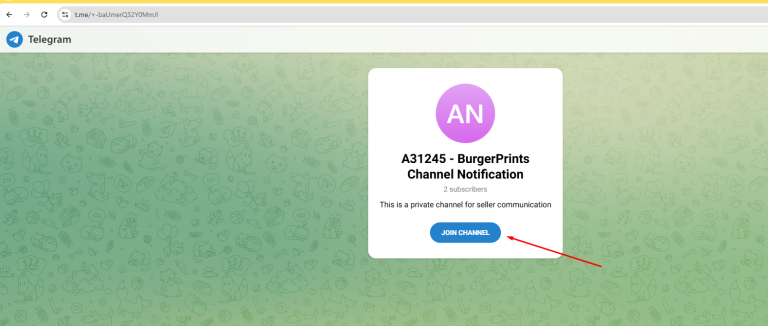
* Select “Join group” to access the user’s private Telegram channel link.
**Step 2: Join the Private Channel**
Users will be redirected to a Telegram channel specifically created for their account.
To activate Telegram notifications:
* Select “**Join Channel**” on Telegram.
* Open the Telegram app on a mobile device or desktop.
* The notification channel will appear in the user’s Telegram list.
**Types of Telegram Notifications**
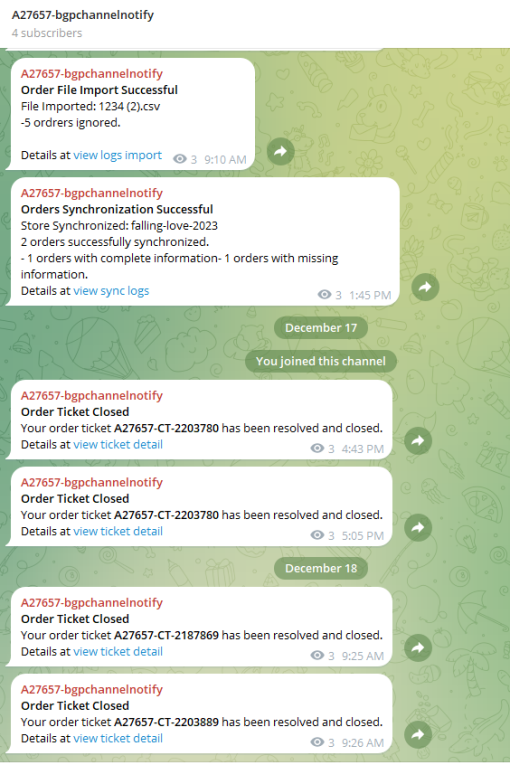
After joining, users will receive real-time notifications, including:
* Order creation updates
* Ticket responses or resolutions
* Errors during order synchronization or processing
* Shipping status updates based on tracking preferences
Each notification message includes the event title, time, summary, and a link to view details in the Dashboard.
**Webhook**
* Allows users to input a webhook endpoint to forward structured event data to an external system.
* Documentation is provided for webhook payload structure.
### **Tracking Notification Preferences**
#### **Where to Configure Tracking Notifications**
Users can configure tracking-related alerts under the “**Tracking notifications**” section within the Notifications page.
#### **Available Tracking Notification Options**
**None (Default)**
No shipping notifications will be sent.\
Suitable for users who prefer to check tracking details manually in the Orders page.
**Receive All Notifications**
Sends notifications for all shipping statuses including in transit, out for delivery, delivered, pending, failed, undelivered, exception, return, and more.
**Only Receive Error Notifications**
Notifies users only when a shipment encounters issues such as pending, failed, undelivered, exception, or return.\
Recommended for users who want meaningful alerts without excessive messages.
**Receive Notifications for Shipped and Completed Orders**
Notifies users when:
* An order is delivered
* An order encounters any error status
Ideal for users who primarily monitor final delivery outcomes.\
Users can stay updated through Website, Telegram, and Email channels for seamless and real-time order tracking. For assistance during setup or troubleshooting, contact the BurgerPrints Support Team.
### **Tips and Best Practices**
* **Enable at Least Two Notification Channels:** Using more than one channel (for example, Website + Telegram) ensures you don’t miss urgent updates such as ticket responses, balance alerts, or shipping exceptions.
* **Use Telegram for Time-Sensitive Alerts:** Telegram delivers the fastest notifications. It is recommended for users who manage multiple storefronts or need quick responses to order issues.
* **Keep Email Notifications for Record Keeping:** Email helps maintain a permanent log of important events like ticket updates, payment confirmations, and system announcements. This is useful for operations, customer support, or finance teams.
* **Use Webhook for Automation:** If your workflow includes internal tools or automated dashboards, set up a webhook to instantly push order and tracking events into your system.
* **Adjust Tracking Notifications Based on Volume**
* Low-volume users: “Receive all notifications” provides full visibility.
* High-volume users: “Only receive error notifications” helps avoid overload.
* Customer-service teams: “Delivered and completed” keeps focus on final outcomes.
* **Review System Notifications Daily:** Website notifications include essential updates such as center suspensions, cutoff changes, and product availability. Checking them regularly helps prevent unexpected delays.
### **Frequently Asked Questions**
1. **How many email addresses can I add?**\
You can add up to **ten** email addresses for receiving notifications.
2. **Why am I not receiving Telegram notifications?**
Make sure you have: Enabled Telegram in Notification settings Joined the private Telegram channel Not muted or left the channel
3. **Can I select different types of notifications for different channels?**\
No. All enabled channels receive the same notification types based on your configured preferences.
4. **What happens if I disable Web notify?**
Website notifications will no longer appear in your Dashboard’s notification center, but other enabled channels (Email, Telegram, Webhook) will still receive updates.
5. **Does changing tracking notification preferences affect historical orders?**\
No. Tracking preferences only apply to future shipping updates, not past orders.
6. **Can I stop receiving shipping notifications entirely?**\
Yes. Select “None” under Tracking notifications to disable shipping updates across all channels.
7. **Why do some notifications arrive later in Email than in Telegram?**
Telegram messages are delivered instantly, while Email may experience minor delays depending on your email provider.
8. **Do I need a Telegram account to use this feature?**\
Yes. A Telegram account is required to receive updates through the Telegram channel.
9. **Can I use Webhook and Email together?**\
Yes. You can enable any combination of channels based on your workflow.
10. **Do system maintenance notifications appear in all channels?**
System announcements typically appear in Website and Email notifications. Telegram may send only urgent operational updates.
### Related Articles
* [How to create a BurgerPrints account](/getting-started/settings/how-to-create-a-burgerprints-account.md)
* [Understanding Team manangement and create sub-account](/getting-started/settings/understanding-team-manangement-and-create-sub-account.md)
* [How to contact the BurgerPrints Support team](/getting-started/quickstart-and-support/how-to-contact-the-burgerprints-support-team.md)