> For the complete documentation index, see [llms.txt](https://help.burgerprints.com/llms.txt). Markdown versions of documentation pages are available by appending `.md` to page URLs; this page is available as [Markdown](https://help.burgerprints.com/getting-started/settings/understanding-team-manangement-and-create-sub-account.md).
# Understanding Team manangement and create sub-account
### Overview
The Team Management feature allows you to create and manage sub-accounts so you can assign fulfillment tasks or manage different stores with your team, while still keeping full visibility from your main account.
Instead of creating multiple independent accounts for different team members, all users can be managed under one Seller ID. This helps the system consolidate the total number of fulfilled items and apply the appropriate pricing tier, which is more beneficial for users.
Team Management is especially useful when you work with fulfillment staff, virtual assistants, or multiple store managers but still want centralized control from one Dashboard.
### How to Create and Manage Sub-Accounts
#### Step 1: Access Team Management
Log in to your main account. In the Dashboard, go to Settings and choose Team Management.
#### Step 2: Add a New User
Select the "**Team Management**" tab and click **Add New User**.
#### Step 3: Configure Sub-Account Settings
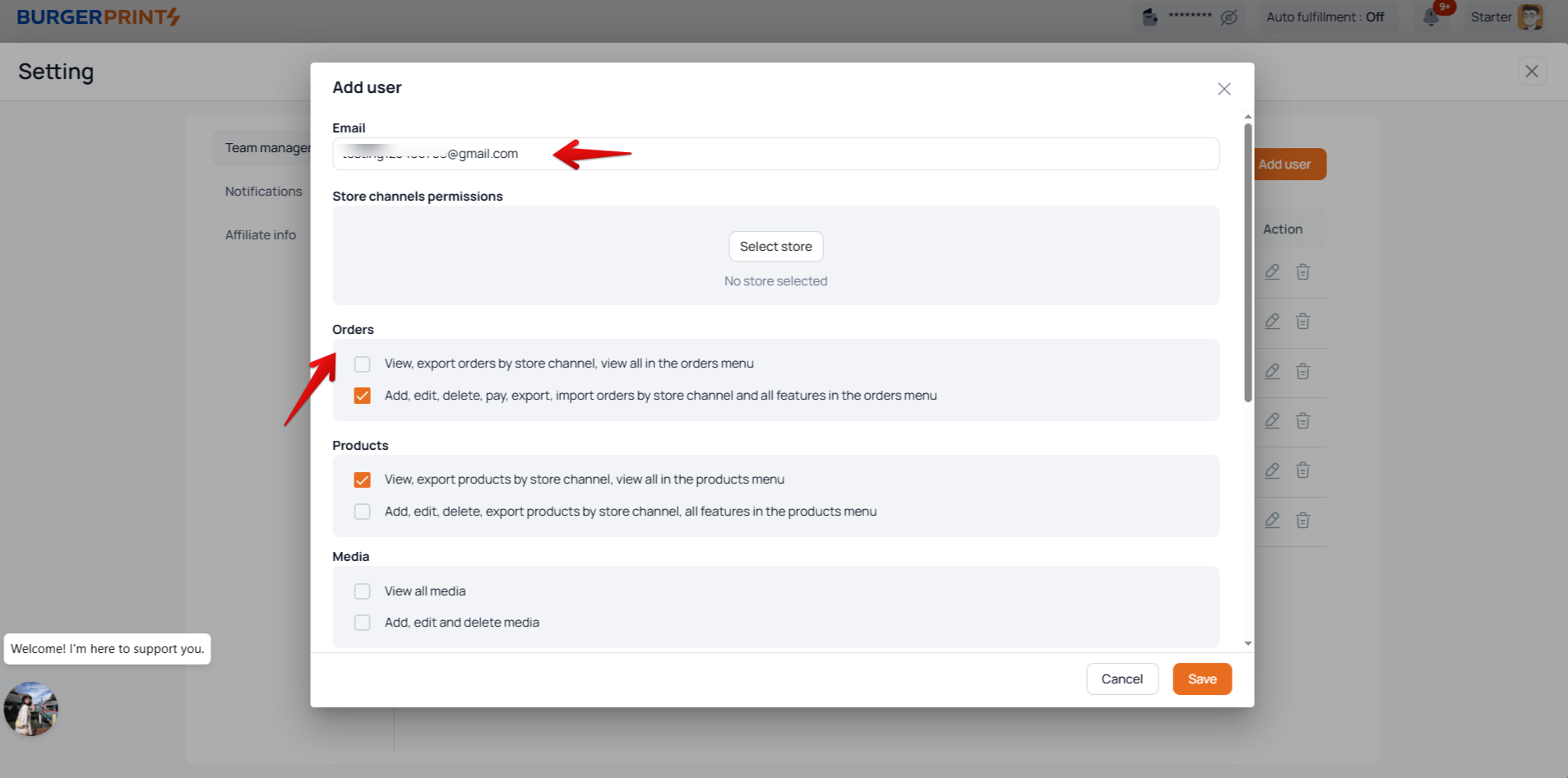
Enter the user’s email address (this will be the **sub-account**). Fill in the required information and configure permissions, such as:
* Which store(s) the user can access
* What actions the user can perform across the Dashboard, including orders, products, and media (for example, view-only access or the ability to create, edit, or delete data....)
**Verification Code Confirmation for owner account:**
To mitigate the risk of unauthorized sub-account creation in case the fulfillment account credentials are compromised, an additional verification step is required:
1. When the owner account adds a sub-account and clicks "**Invite**", instead of sending an invitation to the Sub-account immediately, it generates a 6-digit verification code, sends it to the owner account's email, and displays a popup for the user to enter the code.
2. Main Account enters the verification code
* If the code is incorrect: an error is shown and the user may re-enter the code.
* If the code is correct: the system confirms the sub-account request successfully, sends the invitation email to the Sub-account, and displays the message *"Invitation sent successfully!"*
After adding the email, the sub-account will appear in the list with the status **"Inactive"** until the user completes the email confirmation.
#### Step 4: Email Confirmation
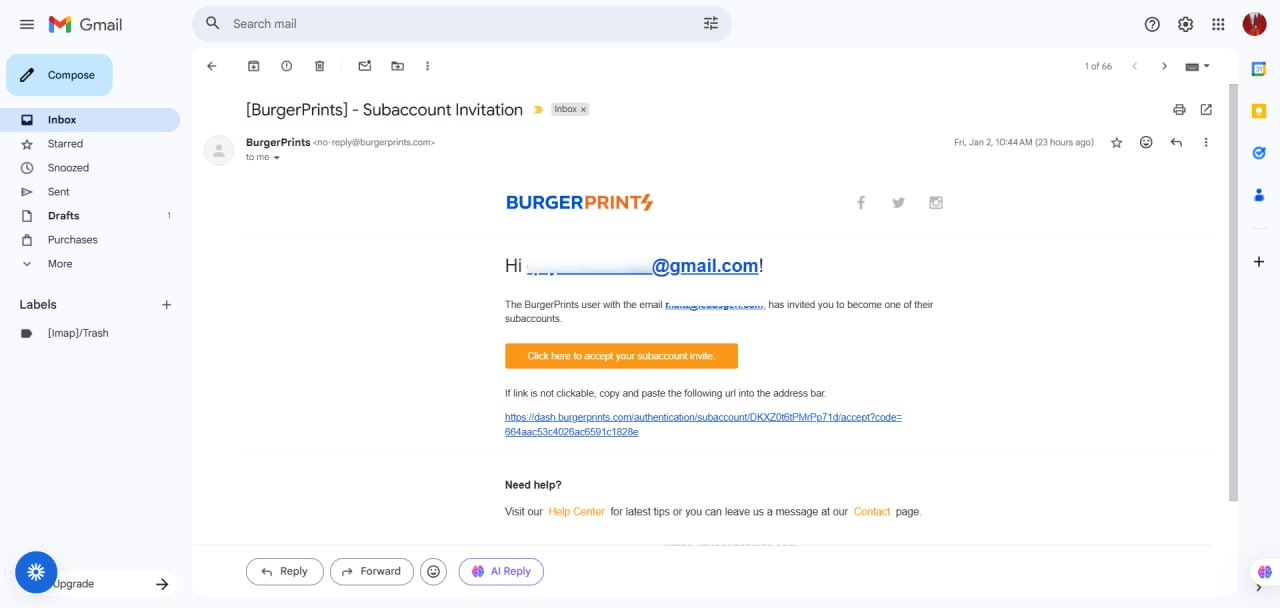
A confirmation email will be sent to the assigned email address.The user needs to:
* Open the email
* Click the confirmation link
* Set up their password
#### Step 5: Account Activation
Once the confirmation is completed successfully, the sub-account status will appear as **“Active”** in your main account.
After the account is activated, you can still edit the sub-account’s permissions/ detele this sub-account at any time from the Team Management section.
#### Step 6: Log In and Start Using
The user can log in at:
They can then start using the **Dashboard** based on the permissions you have assigned.
### Important Notes About Sub-Accounts
* Sub-accounts do not need to be created in advance. You only need to add the user’s email in Team Management and complete the confirmation via email.
* If a user creates an account manually using their email before being added as a sub-account, the system will treat it as an independent account and assign a separate Seller ID. Once an email is linked to a Seller ID, it cannot be added as a sub-account.
### Tips and Best Practices
* Make sure the invited email address is entered correctly when adding a sub-account.
* If the invited user does not receive the confirmation email, please contact the support team. The team will help verify the email and resend the invitation if needed.
* For the best protection of your account, enable Two-Step Verification (2FA) for your account when prompted, or find it under Settings > Security.
### Frequently Asked Questions
1. **Why can’t an email be added as a sub-account?**\
If you see a message indicating that the account already exists when adding a sub-account, it usually means that the email address has already been registered as an independent account and assigned its own Seller ID.\
Once an email is linked to a Seller ID, it cannot be added as a sub-account. Please use a different email address or contact the support team for further assistance.
### Related Articles:
* [How to create a BurgerPrints account](/getting-started/settings/how-to-create-a-burgerprints-account.md)
* [How to contact the BurgerPrints Support Team](/getting-started/quickstart-and-support/how-to-contact-the-burgerprints-support-team.md)
\
\
\