> For the complete documentation index, see [llms.txt](https://help.burgerprints.com/llms.txt). Markdown versions of documentation pages are available by appending `.md` to page URLs; this page is available as [Markdown](https://help.burgerprints.com/getting-started/settings/how-to-create-a-burgerprints-account.md).
# How to create a BurgerPrints account
### Overview
This article explains how to create your BurgerPrints account and set up your basic profile information. It is for new users who want to access the Dashboard, manage orders, and start using BurgerPrints fulfillment.
You learn how to sign up, verify your account, change your password, and update your profile information.
Before you begin, make sure you have an active email address and access to your inbox.
### How To Sign up/in BurgerPrints Account
#### Step 1: Create your account
Open the [BurgerPrints register page](https://dash.burgerprints.com/authentication/register).
* Enter your email address in the **Email** field.
* Enter and confirm your password.
* Click **Create Account**.
You’ll then be prompted to verify your email address.
#### Step 2: Verify your email
Check your inbox for the verification email sent to the email address you used to register.
* Enter the **6-digit verification code** from the email.
* If you don’t receive the code, click **Resend** to request a new one.
* Click **Continue** to complete the verification process.
After your email is verified, your BurgerPrints account will be activated.
#### Step 3: Log in your account
* After signing up for an account on BurgerPrints, you return to the login page. There are 2 ways to sign in your account:
* Fill in your email and password directly then click **Sign in**.
* Sign in with Google.
You now access the **Dashboard**.
### How To Configure BurgerPrints Account
You can manage your account, security, notifications, and team settings from **Settings:**
* Click your avatar in the top-right corner.
* Select **Account setting**.
Settings tab includes the following tabs:
* **Account:** Manage your account and personal information.
* **Security:** Manage your password, Two-Step Verification, and logged-in devices.
* **Notification:** Manage your notification preferences.
* **Team Management:** Manage team members and their access.
#### Manage your account information
* Go to the **Account** tab to update your account and personal information.
* You can update details such as your name, business information, contact information, address, language, and timezone.
* Click **Save** **Change** to apply your changes.
#### **Manage your password**
Go to the **Security** tab to change your password.
* Enter your **Current password**.
* Enter your **New password**.
* Enter your **Confirm new password**.
* Click **Update Password**.
Use a strong password with a combination of letters, numbers, and symbols.
#### **Turn on Two step verification**
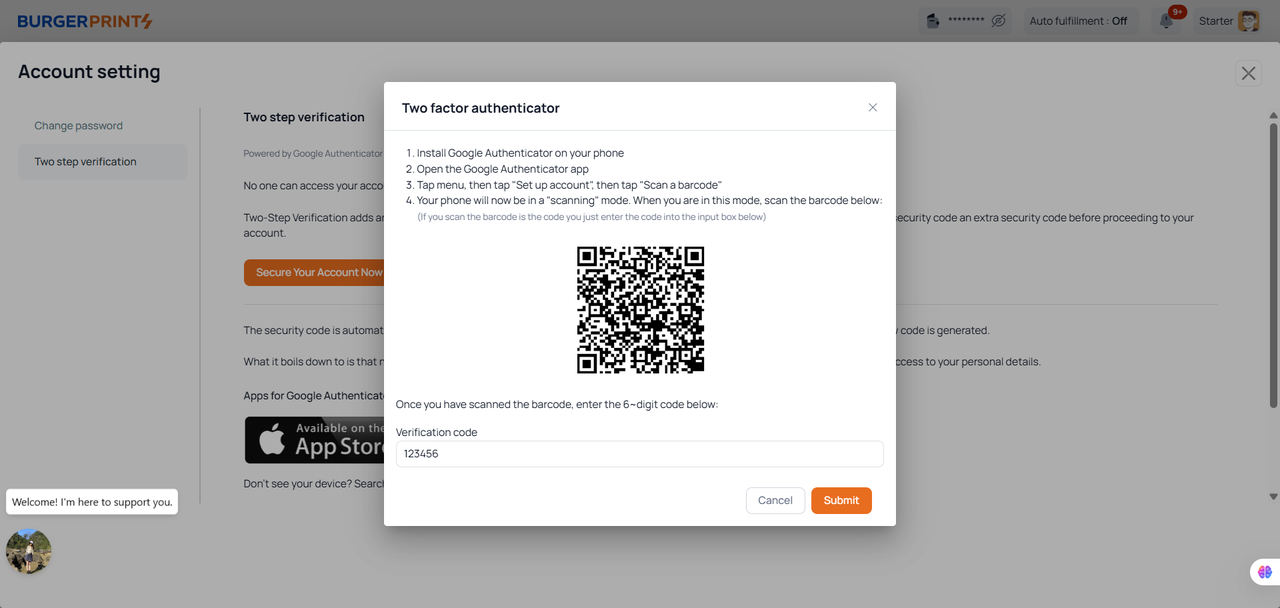
Two-Step Verification adds an extra layer of security to your account. After you login with your username and password, you will enter a security code before proceeding to your account.
To set it up, you need an authenticator app installed on your mobile device. If you don't have an authenticator app yet, you can download one of the following:
* **Google Authenticator:** [Android](https://play.google.com/store/apps/details?id=com.google.android.apps.authenticator2\&hl=en) | [iPhone](https://apps.apple.com/vn/app/google-authenticator/id388497605)
* **Microsoft Authenticator:** [Android](https://play.google.com/store/apps/details?id=com.azure.authenticator\&hl=en) | [iPhone](https://apps.apple.com/vn/app/microsoft-authenticator/id983156458)
* **Authy:** [Android](https://play.google.com/store/apps/details?id=com.authy.authy\&hl=vi) | [iPhone](https://apps.apple.com/vn/app/twilio-authy/id494168017)
After installing and setting up your authenticator app:
1. Go to **Account setting** and select the **Two step verification** tab.
2. Click **Secure Your Account Now**.
3. Open your authenticator app and scan the QR code displayed on BurgerPrints.
4. Enter the verification code generated by your authenticator app.
5. Click **Submit**.
Two-Step Verification is now enabled for your BurgerPrints account.
Once verified, your device will be remembered for 30 days, so you won't need to enter a verification code every time you sign in.
**Recovery codes**
After you successfully set up Two-Step Verification, you’ll receive **10 recovery codes**.
Download or copy these codes and store them somewhere safe. Each code can be used **once** to sign in if you lose access to your authenticator app or can’t receive a verification code.
If you use all recovery codes, or no longer have access to both your authenticator app and recovery codes, **contact our** [**support team**](/getting-started/quickstart-and-support/how-to-contact-the-burgerprints-support-team.md) to recover your account and reset Two-Step Verification.
{% hint style="success" %}
**Notes:** New recovery codes are generated each time you enable Two-Step Verification. Any codes generated previously will no longer work.
{% endhint %}
#### Manage logged-in devices
**Device Management** lets you review devices that have recently signed in to your BurgerPrints account and view their sign-in details.
Go to **Settings > Security > Device Management** to review your recent account activity.
If needed, click **Sign out all** to sign out of all logged-in devices except the device you are using.
#### Manage notification preferences
Go to the **Notification** tab to manage your notification preferences.
### Tips and Best Practices
* Use an email you check frequently to avoid missing verification or notifications.
* Complete your profile to ensure smooth order processing.
* Keep your password secure and update it regularly.
* If you don’t receive a verification email, check your spam folder or resend the email from the login page.
* If you are working as a team, [create sub-accounts and assign permissions for team members.](/getting-started/settings/understanding-team-manangement-and-create-sub-account.md)
### Frequently Asked Questions
1. **Why didn’t I receive the verification email?**\
Please wait a few minutes to check again or check your spam folder. If you still cannot find it, open the login page and click Resend verification email.
2. **Can I change my email address later?**\
Yes. Go to Settings, choose Affiliate info, then update your email.
3. **Is Google sign-in supported?**\
Yes. You can select Sign in with Google on the login page.
### Related Articles
* [Understanding Team manangement and create sub-account](/getting-started/settings/understanding-team-manangement-and-create-sub-account.md)
* [Understanding multi-channel notification feature](/getting-started/settings/understanding-multi-channel-notification-feature.md)