> For the complete documentation index, see [llms.txt](https://help.burgerprints.com/llms.txt). Markdown versions of documentation pages are available by appending `.md` to page URLs; this page is available as [Markdown](https://help.burgerprints.com/orders-production-and-fulfillment/orders/how-to-create-a-fulfillment-store-to-manage-your-orders.md).
# How to create a fulfillment store to manage your orders
### Overview
A fulfillment store helps you store and manage orders on BurgerPrints. Each account includes a default store ready for fulfillment, and additional stores can be created to organize orders and connect with external platforms via API.
### **How To Create A Fulfillment Store**
#### **Step 1: Access the Dashboard**
* Log in to your **BurgerPrints Dashboard**.
* On the left navigation bar, find the **Store channels** section.
* Click **Add new store**
#### **Step 2: Select the Fulfillment store option**
In the **Connect store** interface, you will see icons for different store types.
* Click the **BurgerPrints** store icon.
* Enter the **name** you want to assign to the new store.
* Click **Create store**.
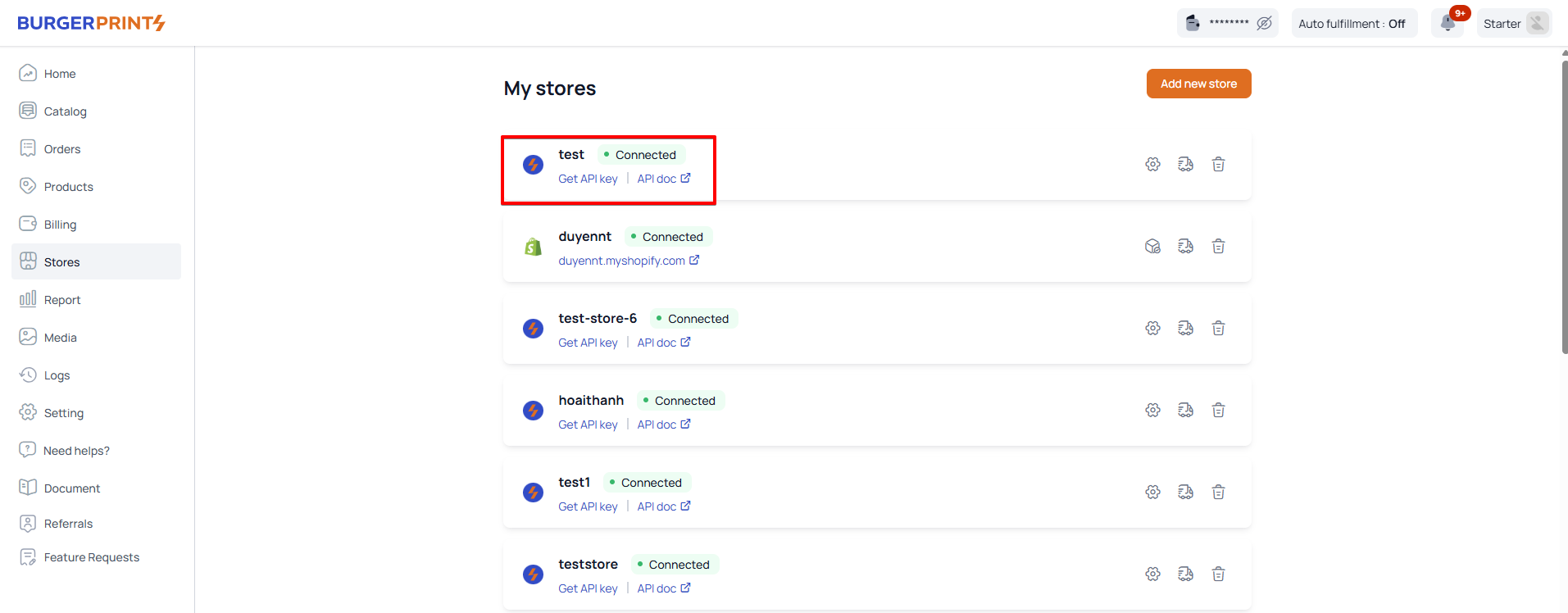
After creating the fulfillment store, it appears in the **My stores** list when you open **Stores**.
### **How To Edit Your Fulfillment Store**
* Next to the store name in the **Store channels** bar, click the **gear icon**.
* Update the store name as needed.
* Click **Save** to keep changes.
{% hint style="info" %}
**Note:** Each fulfillment store has an **API key** that can be used to synchronize orders from other systems or software (e.g., order management tools). The API key **cannot be changed** once the store is created.
{% endhint %}
### **Tips & Best Practices**
Use fulfillment stores to keep your order management clear and scalable. To get the most out of fulfillment stores, follow these best practices:
* Create a fulfillment store only when you need to organize orders by workflow, team, region, or purpose.
* Use clear and descriptive store names to easily identify how orders are grouped (for example: *EU Warehouse Orders*, *Custom Print Team*).
* Assign store access only to team members responsible for managing orders in that store.
* Use each store’s API key to connect external platforms and automatically sync orders when needed.
* Create additional stores as your operation grows to track orders and performance separately.
* If you no longer need a store, delete it by selecting the **Remove** option in the store settings.
### **Frequently Asked Questions**
1. **What is a fulfillment store used for?**\
A fulfillment store is used to place and manage orders within the BurgerPrints system. It is not a sales channel for selling products.
2. **Can I create multiple fulfillment stores?**\
Yes. You can create as many fulfillment stores as needed to organize orders and delegate management to different teams.
3. **How do I delete a fulfillment store?**\
Go to the **Store channels** panel, open the store settings using the gear icon, and select **Remove** to delete it.
4. **What is the API key for?**\
The API key allows you to integrate the fulfillment store with external tools or platforms to sync orders automatically. This key cannot be changed after creation.
### **Related articles**
* [How to use the API and developer guide](/integrations-and-store-connections/integrations/how-to-use-the-api-and-developer-guide.md)
* [Understanding Team manangement and create sub-account](/getting-started/settings/understanding-team-manangement-and-create-sub-account.md)
\