> For the complete documentation index, see [llms.txt](https://help.burgerprints.com/llms.txt). Markdown versions of documentation pages are available by appending `.md` to page URLs; this page is available as [Markdown](https://help.burgerprints.com/orders-production-and-fulfillment/orders/how-to-create-an-order-on-burgerprints.md).
# How to create an order on BurgerPrints
### Overview
BurgerPrints is a professional print-on-demand platform that supports multiple order creation methods to meet the fulfillment needs of users selling on all marketplaces. Users can create orders directly on the BurgerPrints Dashboard, import orders using CSV files, sync orders automatically via API, or connect marketplaces for automatic order syncing. This flexibility supports different business models and order volumes.
In this article, we focus on 2 primary fulfillment methods: **Create orders directly on the BurgerPrints Dashboard** and **Create orders using CSV**. These methods are ideal for users who are new to BurgerPrints and want to quickly test product quality, fulfillment speed, and overall service experience before scaling to more advanced order sync solutions.
#### Requirements before creating orders
Before you begin, make sure you fully [understand BurgerPrints product design requirements and design standards](/design-and-product/designs/understanding-product-design-and-burgerprints-design-standard.md).
Then, you need a store to manage order fulfillment. You can:
* Use an existing BurgerPrints store
* Create a new fulfillment store with your preferred name
* Connect your marketplace store to BurgerPrints
You can create or connect a store from the **Stores** section on the Dashboard navigation bar
### How To Create Orders Directly On The BurgerPrints Dashboard
You can create orders directly on the Dashboard using 2 methods:
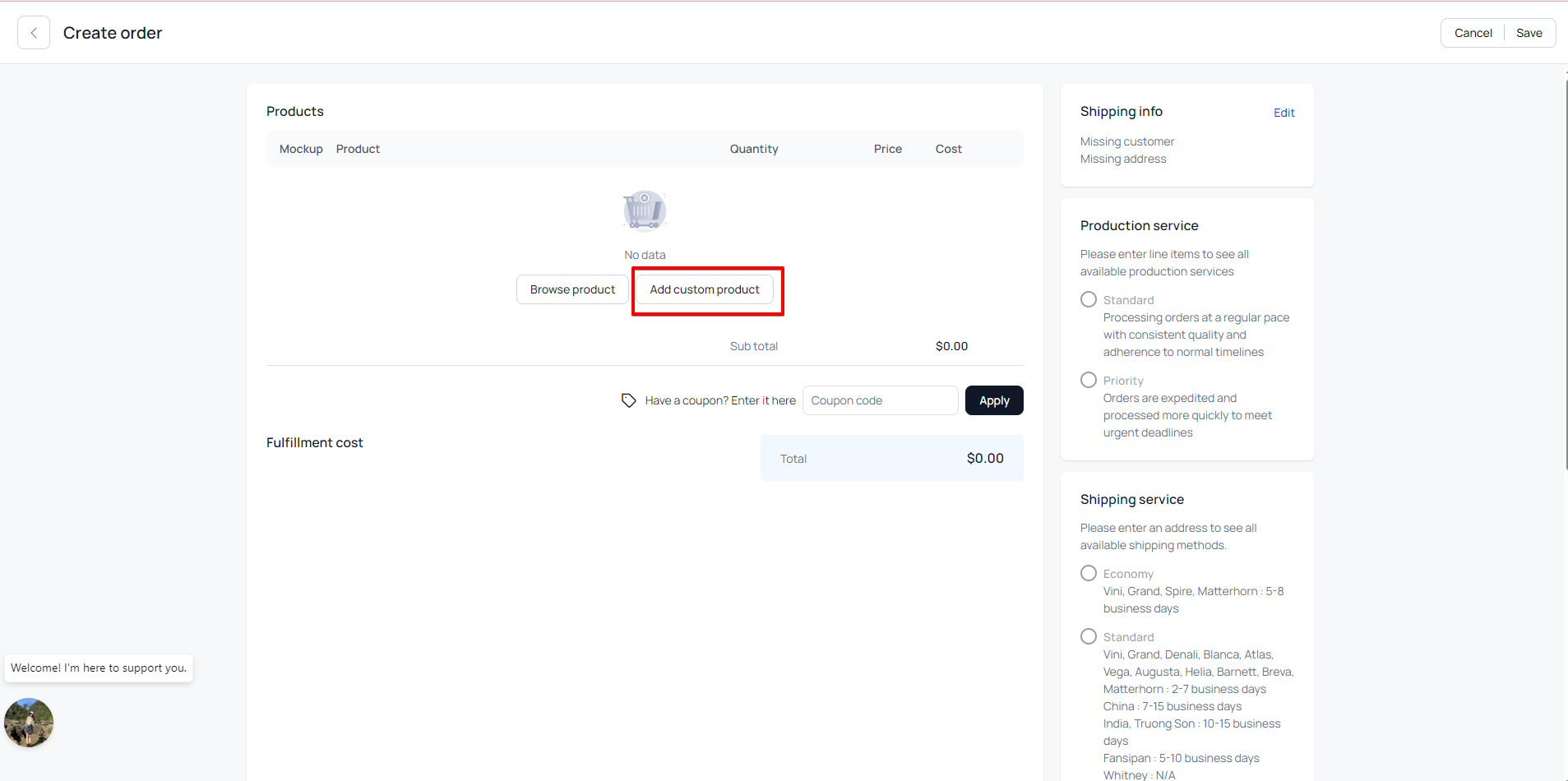
* Add Custom Product
* From Browse Product
The order creation method you choose depends on your fulfillment needs and working habits. If you are not sure which method to use, you can refer to the comparison below. Each method has its own advantages and limitations, which help you decide the most suitable option for your workflow.
**Add Custom Product**
**Advantages:**
* High flexibility, no need to create products in advance
* Works well for test orders
* Suitable for orders with custom designs
* Allows you to change the product type, design file, and product variant during order creation.
**Limitations:**
* Takes more time when creating a large number of orders
* Higher risk of mistakes when manually entering multiple fields
* Not optimized for bulk order creation.
**Recommended for:**\
The seller creates test orders, single orders, or sells custom design products.
**Browse Product**
**Advantages:**
* Reduces the risk of errors because products and design files are created in advance
* Works well for orders with repeated designs.
**Limitations:**
* Not suitable for orders that require frequent design changes or multiple base combinations
* Not suitable for products such as Hoodies, Zip Hoodies, or products with sleeve printing
* Limited number of bases and colors per product.
**Recommended for:** \
The seller sells designs that do not change frequently and already have multiple products created in advance.
1. #### **Create an Order Using "Add Custom Product"**
**Step 1: Start Creating an Order**
Log into your account at
On the Dashboard, go to **Orders** to begin the fulfillment process.
**Step 2: Select the Order Type**
On the order creation screen, choose the order type that matches your needs:
* **Create Order** \
Use shipping labels provided by BurgerPrints. BurgerPrints handles production and shipping.
* **Label Order** \
Use your own shipping label from a marketplace (for example: TikTok Shop, Amazon, Walmart). \
Upload your shipping label and fill in product information. BurgerPrints handles fulfillment.
{% hint style="success" %}
**Notes:**
For Label Order, all items in the same order must belong to the same shipping group.
If the order contains items from 2 or more shipping groups, you must split them into separate orders before continuing.
For example: Mug + T-shirt
{% endhint %}
**Step 3: Create an order by Add Custom Product**
Configure the product details:
* Select Base product
* Select Fulfillment facility
* Choose Color and Size
* Upload design files to the correct positions (front, back, sleeve, etc.)
Make sure your design files meet BurgerPrints requirements for size and format.
BurgerPrints **blocks the shipping step** if your order contains items from different shipping groups. You must split them into separate orders to continue.
Products like shirts, stickers, mugs, and posters often belong to different shipping groups, so they typically can’t be shipped together in one order.
{% hint style="success" %}
***Note***:
A mockup file is a visual representation of the print design and its overall scale on a product. Sellers typically use mockup images on their stores to help Buyers better visualize the final product.
You can upload mockup images directly to the Mockup Front/Mockup Back fields, as long as the images allow us to clearly understand how the design is intended to appear on the product to be fulfilled.
Providing mockup files is especially important for products with higher complexity, such as:
* Full-Printed Apparel: 3D all-over print garment, Shoes, Cap...
* Decoration products: Ornament...
* Accessories: Mug, Tumbler
Please note that mockup files are not used as the primary reference for printing. All production is processed strictly based on your design files.
If you want to skip the mockup upload step, you can select the checkbox “**I choose to use my design files for production without custom mockups.**"
{% endhint %}
{% hint style="warning" %}
***Tips:***
BurgerPrints operates as a network connecting multiple fulfillment facilities that meet industry standards and serve Sellers. Each fulfillment facility may have different SKU availability and pricing policies, which can vary at any given time.
Sellers can evaluate and select a facility based on the following factors:
* Availability of SKUs that match the order at the time of order creation
* Printing technology
* Order processing performance metrics
* Fulfillment cost
* Time to tracking number availability
* Design eligibility for fulfillment
* Print quality...
If you need detailed assistance in selecting a facility, please contact the Support team for consultation.
{% endhint %}
You can see the details by hovering over the facility below.
2. #### **Create an Order from Browse Product**
This method applies to creating Orders using BurgerPrints shipping service from the **Create Order** section.
You must create products in advance. Products already created on the Platform can be used to create orders.
Currently, the mockup preview on the BurgerPrints system only provides a general simulation of print placement and the overall product appearance. It does not accurately represent the actual print size or real product colors.
Especially for Printed Apparel products, such as hoodies or zip hoodies, sleeve print areas, or other complex print zones, BurgerPrints does not currently support mockup previews for these areas.
**Step 1: Create Product**
On the Dashboard, go to **Products**, then click **Create Product**.
* Choose the product
* Add the design file
* Fill in the required product information
* Click **Save.**
On the Designing screen, you can select Fullillment strategy, color and size for your product.
You can upload design images from your device or you can select files stored in the Media module.
**Step 2: Start Creating an Order**
Log into your account at .
Go to **Orders**, click **Create Order**, then select **Browse Product**.
Select the product to fulfill:
On the next screen, choose: Style, facility, Color, Size, Quantity then click **Add Product to order.**
3. #### **Complete shipping** information **and fulfillment services**
**Add shipping information or label file**
When creating orders directly on the Dashboard, you must manually configure shipping information, production service, and shipping service.
* When fulfilling Order ship by Marketplace on the **Label Order** screen, you import a label file or import a label link
{% hint style="success" %}
**Notes:** BurgerPrints requires shipping labels in **4 × 6 inch** format and supports the following carriers:
* US Label: USPS
* UK Label: Evri, Royal Mail
* EU Label: DPD, Colissimo, Mondial Relay, Chronopost\
You can find the detailed requirements for the label file [HERE](/design-and-product/products/understanding-label-order-on-burgerprints.md) \
For other carriers, please contact BurgerPrints Support for confirmation.
{% endhint %}
* When fulfilling Orders using BurgerPrints shipping service on the **Create Order** screen, you need to fill in the following fields in the Shipping info section: Full name, Email, Phone number, Country, State, City, Street address, APT / Suite / Other, and Zipcode.
{% hint style="success" %}
**Notes**:
* Apartment or unit numbers are required for apartment buildings to ensure successful delivery
* Seller must verify shipping addresses before fulfillment.
{% endhint %}
**Select Production service**
You can select one of the following options:
**Priority**: Orders will be processed faster to meet urgent deadlines.
BurgerPrints recommends using **Priority Production** for TikTok Shop, Walmart orders, marketplaces with strict processing time requirements, or any urgent orders.
Only facilities and products that support the Priority Production service will display this option for selection.
**Select Shipping service**
You can choose from the following options:
**Economy Shipping:** US domestic delivery: 5–8 business days
**Standard Shipping**
* Domestic shipping within the same country as the facility: 2–7 business days
* International shipping:
* US to worldwide: 10–25 business days
* Vietnam or China to the US: 7–15 business days
* EU to EU: 5–10 business days
**Express Shipping:** Available in the US only: 2–5 business days
**Priority Shipping:** Available in the US only: 1–3 business days
*Shipping timelines may change during peak seasons.*
**Select Additional service**
BurgerPrints currently provides **ProActive Tracking** as an additional service.
This service ensures that orders become **active within 48 hours after payment**. Sellers are encouraged to prioritize this service to maintain strong active-rate performance on selling platforms, for example: **TikTok Shop** and **Walmart**.
* For orders using **Ship by Marketplace**, ProActive Tracking applies to **all products, all facilities** and only **USPS label** is supported.
* For orders using **BurgerPrints shipping service,** ProActive Tracking applies under these conditions:
* Carrier: USPS
* Fulfillment Facility: Matterhorn (US), Helia (US), Grand (US), Breva (US), Blanca (US), Truong Son (VN)
* Mug and Poster products fulfilled at the Breva facility do not support this service.
{% hint style="success" %}
**Note: Please note that ProActive Tracking does not reduce or accelerate delivery time.**
For more details about this service and its applicable policies, refer to the article [HERE](/orders-production-and-fulfillment/orders/how-to-create-an-order-on-burgerprints.md)
{% endhint %}
2. **Custom branding service:** Custom branding is a group of optional fulfillment services that allow you to include customized branding materials with your BurgerPrints orders. You can use your own logo, artwork, messaging, or other brand elements to create a more personalized fulfillment experience. You can check more details [HERE](https://help.burgerprints.com/design-and-product/designs/understanding-burgerprints-custom-branding-services).
**Tips and Best Practices**
* Verify shipping addresses before submitting orders.
* Use correct design file sizes and formats to avoid order delays.
* Use Priority Production for urgent or marketplace orders with strict processing timelines.
* Use the ProActive Tracking service for marketplaces that have strict active tracking requirements, such as TikTok Shop and Walmart.
* For Label Order, group items by fulfillment facility and shipping group before creating the order or importing the CSV. This helps avoid blocked checkouts and **Incomplete** orders.
### How To Create Order Using CSV
If you need to create multiple orders at the same time and already have order data prepared from another system or an internal file, you can create orders by importing a CSV file.
**Advantages:**
* Create bulk orders quickly
* Suitable for large order volumes
* Supports ready-made order data from internal systems or CSV exports from marketplaces
* Gives you full control over order data before submission.
**Limitations:**
* Requires accurate input across all required fields
* Less visual and interactive compared to creating orders directly on the Dashboard.
**Recommended for:** \
Suitable for sellers who process large order volumes and already have internal order data prepared.
To create a new order using a CSV file, you need to access the BurgerPrints Dash system and follow the instructions:
#### **Step 1: Import CSV**
Log into your account at[ https://dash.burgerprints.com/](https://dash.burgerprints.com/).
Go to the **Orders tab** to begin the fulfillment process. Click **Import.**
#### **Step 2: Download example CSV**
In **Import order to store**, select the store you want to manage fulfillment for.
Click **Download example CSV** and fill in the required fields.
#### **Step 3: Fill in the CSV file**
First, you choose the fulfillment type: Ship by seller or ship by marketplace
1. **For order using BurgerPrints shipping service**\
Fill in the following fields:\
*Name, Line-item quantity, Line-item SKU, Shipping Name, Shipping Address1, Shipping Address2, Shipping City, Shipping Province, Shipping Zip, Shipping Country, Shipping Phone, Design front URL, Design back URL, Mockup front URL, Mockup back URL*.
2. **For orders using Ship by Marketplace**\
Fill in the following fields:\
*Name, Line-item quantity, Line-item SKU, Design front URL, Design back URL, Mockup front URL, Mockup back URL, Shipping label file.*
***Note***:
* Name: You should enter the corresponding order code created on the sales page for synchronization, which helps in easier order management.
* Line-item SKU*:* Go to the BurgerPrints catalog at [https://burgerprints.com/catalog](https://burgerprints.com/catalog?utm_source=chatgpt.com) and select a product to get its SKU. On BurgerPrints, an SKU identifies the following information: facility, product type, size, and color. You must enter the correct SKU to ensure the order information is recorded accurately. You can learn how to get the SKU [HERE](/faq-and-troubleshooting/faq/how-do-i-check-shipping-fees-on-burgerprints.md).
* Shipping Address 2: For apartment or building addresses, an apartment or unit number is required.
* Email customer and Shipping phone: should be provided to allow carriers to reach the recipient if necessary.
* For orders with 2 or more products/designs: If an order has 2 or more products/designs, fill in each product on a separate line. Enter the information in the line below exactly the same as the original line, only fill in the columns: Line Item quantity, Line-item name, Line-item SKU, and design/mockup column so that the products ordered by the customer are grouped under one order code. If the items have the same Reference ID (column A-Name), the system uses the Address, Shipping Service, Production Service, and Additional Service data from the first line.
* For orders with multiple items, the information fields should be the same except for the columns Line-item quantity, Line-item name, Line-item SKU, Design front URL, Design back URL, Mockup front URL, Mockup back URL. In the same order, if there is an item with missing or incorrect information combined with an item with complete information, the system will check which item has complete information and use that. If no item has complete information, the order will default to the Incompleted status, waiting for information to be added.
* For orders that contain multiple items, users should prioritize selecting the same fulfillment facility. Especially for Order ship by marketplace, you should ensure that all items are selected from a single facility. The system displays a warning *"Custom label orders must have items from the same* facility*. Please adjust your order accordingly"* if you do not follow this requirement, the order is Incompleted, and you need to manually check and adjust this order.
* Shipping method: This applies only for **orders using BurgerPrints shipping service** \
Select Economy, Standard, Express, or Priority Express. If left blank, the system automatically selects a suitable shipping service based on the product and fulfillment facility.
* Production service: If left blank, the system automatically selects Standard. If you need to prioritize the production of the order, please enter Priority.
* Additional Service: Select Pro-Active Tracking. If left blank, no service is selected.
BurgerPrints recommends using **Priority Production** for TikTok Shop, Walmart orders, marketplaces with strict processing requirements, or urgent orders.
#### **Step 4: Import CSV**
Click **Import**, select the CSV file from your computer, then click **Open**. The invalid file format will be warned. If the file is valid, you can click **Confirm** to import it.
After uploading the file, click "**Logs section**" on the succeeded toast to open **Import History** or reload this table to check the new ones.
**Pending** status: means the order is under review. The system takes 30 seconds to 1 minute to validate the CSV data.
After the review process is complete, the system shows the status as **Done**.
Here, you can review the details of the CSV file you just uploaded.
Click the file name to view all orders, including: order time, quantity, product name, warning status, and warning messages for incorrect order information.
For Label Order CSV, if an order contains items from different shipping groups, the order appears as "**Incomplete**" after import.
To review the issue, go to **Logs** then choose **Import**, open the imported file, then check and adjust the affected order.
### **Review Orders and Complete Payment**
After you choose the most suitable order creation method, your orders appear on the **Orders** screen with 2 statuses:
* **Unpaid**: The order has complete shipping information and valid product details, and is ready for payment.
* **Incomplete**: The order is missing shipping info or design file is incorrect/missing. To identify the cause of the **Incomplete** status, go to **Logs**, select the file name, and review the error details. Update the required information for the affected orders, then click **Save** order to update the order status to **Unpaid**.
For orders in the **Unpaid** status, you can proceed to pay for the order to complete the fulfillment process.
BurgerPrints supports 2 payment methods: Pay manually or enable Auto Pay.
Or you can turn on the Auto Fulfillment feature to make it automatically.
After you pay for the order, the order status updates from **Processed** to **Shipped** according to each product’s processing time.
You have **30 minutes** after payment to edit or cancel the order. After this timeframe, any request to update order information requires us to check with the facility to confirm whether changes are still possible. Learn how to create a ticket [HERE](/policies-and-quality-assurance/policies/how-to-change-your-order.md).
In addition, follow the **Tracking Management** tab on the taskbar to receive the latest updates on the tracking number and the corresponding shipping status in real time.
### Frequently Asked Questions
1. **Why does my order show Incomplete status?**\
Some required information is missing or incorrect. Review the warning messages and update the order. If you encounter any difficulties, please contact BurgerPrints Support for assistance.
2. **Can I edit an order after submission?**\
You can edit orders before payment. For paid orders, please create a support ticket so our team can review and confirm the request.
3. **Can I create orders for sleeve prints, oversized prints, or hoodie designs using the “Browse Product” method?**
No. These special print positions are not supported when creating orders using the “From Product Created” method. Please use one of the following order creation methods: Add Custom Product, CSV, or API to create orders.
4. **What happens if I upload an incorrect shipping carrier label?**
If the order is not paid, or has been paid but is still within the allowed cancellation period, you can edit the order or create a support ticket to request a label change, which BurgerPrints can accept.
5. **Why does my CSV import show Failed for the entire file without a clear reason?**\
Please contact the BurgerPrints Support team immediately so we can assist you.
6. **Can I add a customer note to the package?**
Currently, BurgerPrints does not support this service. If you need to add a note, please keep the message short (under 40 characters) and enter it in the Shipping Address2 or APT/Others field.
7. **Why is my Label Order blocked when I click Add shipping?** \
BurgerPrints blocks Label Orders that contain items from different shipping groups. To continue, split those items into separate orders and try again.
8. **Why does my Label Order CSV import show Incomplete?** \
This can happen when the same Label Order contains items from different shipping groups. Go to **Logs** then check **Import**, review the warning in **Finalize order**, then split those items into separate orders.
9. **Can I place Shirt, Sticker, Mug, and Poster in the same Label Order?** \
Not always. These product types often belong to different shipping groups. If they do, they must be placed in separate orders.
### Related Articles
* [Understanding product design and BurgerPrints' design standard](/design-and-product/designs/understanding-product-design-and-burgerprints-design-standard.md)
* [How to use the API and developer guide](/integrations-and-store-connections/integrations/how-to-use-the-api-and-developer-guide.md)
* [How to connect your Etsy store to BurgerPrints](/integrations-and-store-connections/store-connections/how-to-connect-your-etsy-store-to-burgerprints.md)
* [How to connect your Shopify store to BurgerPrints](/integrations-and-store-connections/store-connections/how-to-connect-your-shopify-store-to-burgerprints.md)
* [How to connect your WooCommerce store to BurgerPrints](/integrations-and-store-connections/store-connections/how-to-connect-your-woocommerce-store-to-burgerprints.md)
* [How to connect your Walmart store to BurgerPrints](/integrations-and-store-connections/store-connections/how-to-connect-your-walmart-store-to-burgerprints.md)
* [How to connect your BurgerShop store to BurgerPrints](/integrations-and-store-connections/store-connections/how-to-connect-your-burgershop-store-to-burgerprints.md)
* [How to integrate order desk with BurgerPrints](/integrations-and-store-connections/store-connections/how-to-integrate-order-desk-with-burgerprints.md)
* [Understanding the BurgerPrints fulfillment process](/getting-started/quickstart-and-support/understanding-the-burgerprints-fulfillment-process.md)
* [How to top up your balance and pay for orders](/payments-billing-and-taxes/payments/how-to-top-up-your-balance-and-pay-for-orders.md)
* [How to change your order](/policies-and-quality-assurance/policies/how-to-change-your-order.md)
* [How to apply full and partial cancellation policies](/policies-and-quality-assurance/policies/how-to-apply-full-and-partial-cancellation-policies.md)