> For the complete documentation index, see [llms.txt](https://help.burgerprints.com/llms.txt). Markdown versions of documentation pages are available by appending `.md` to page URLs; this page is available as [Markdown](https://help.burgerprints.com/integrations-and-store-connections/store-connections/how-to-integrate-order-desk-with-burgerprints.md).
# How to integrate Order Desk with BurgerPrints
### **Overview**
This guide explains how to connect your Order Desk store to BurgerPrints and how the integration works for syncing orders for fulfillment, payment, and tracking.
With this integration, orders are sent directly from Order Desk to BurgerPrints for production and fulfillment without syncing products between the two systems. All product information is managed within Order Desk, while BurgerPrints handles manufacturing and shipping.
Depending on your configuration, orders may require specific information to be completed before payment and production can begin.
This guide also covers how to manage payments after orders are successfully synced and how to track order status and shipping updates between Order Desk and BurgerPrints, ensuring a smooth and efficient fulfillment process from order creation to delivery.
### **How To Connect Your Order Desk Store to BurgerPrints**
#### **Step 1: Access the BurgerPrints System**
* Go to:
* On the Dashboard, find the **Stores** section.
* In the **Stores** section, choose the **Add store** button.
* Click on Order Desk to **view** detailed instructions on how to integrate Order Desk with BurgerPrints.
* To integrate Order Desk with BurgerPrints, you need an existing BurgerPrints store. You may use the default store provided by BurgerPrints or create a new one. You can create a new BurgerPrints store in just three simple steps:
* Click the **Add Store** button (see the illustration image attached above for reference).
* On the **Add Store** screen, select BurgerPrints channel and enter your store name
* Click **Add Store** to complete the setup.
Once created, your new store will appear in the store list and can be used to connect with Order Desk.
#### Step 2: Log in to your Order Desk account and follow the integration instructions provided in BurgerPrints
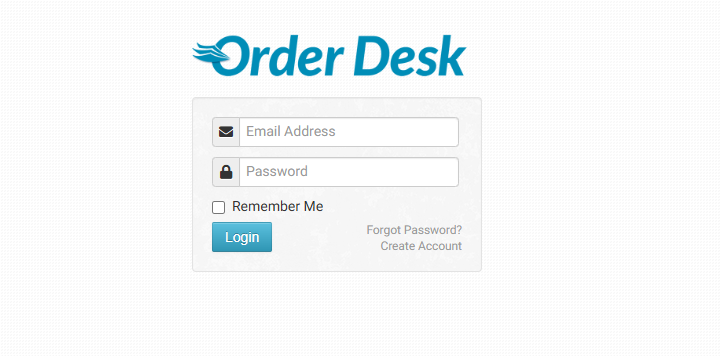
1. Access and log in to your account.
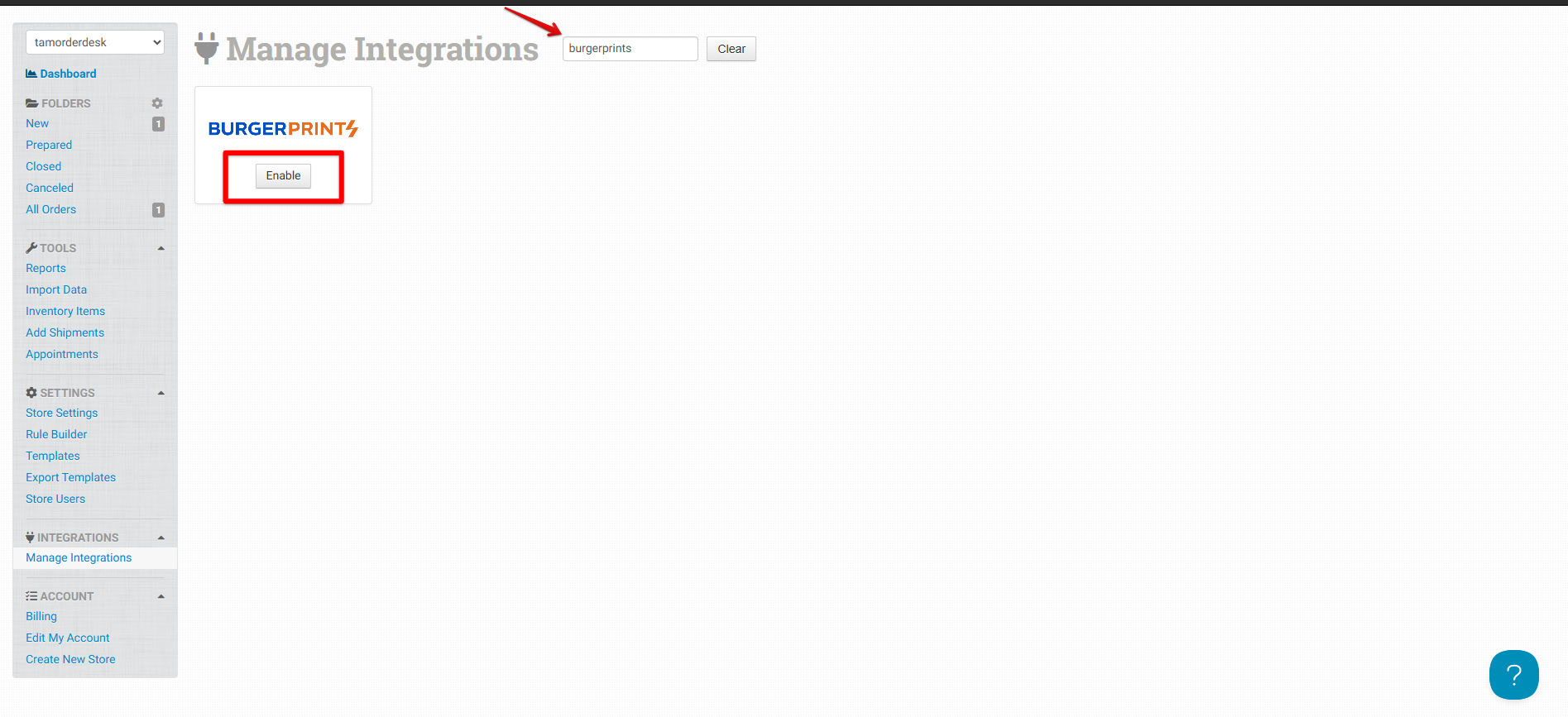
2. **Find BurgerPrints in Manage Integrations menu, then "Enable".**
3. **Get the API key from BurgerPrints**
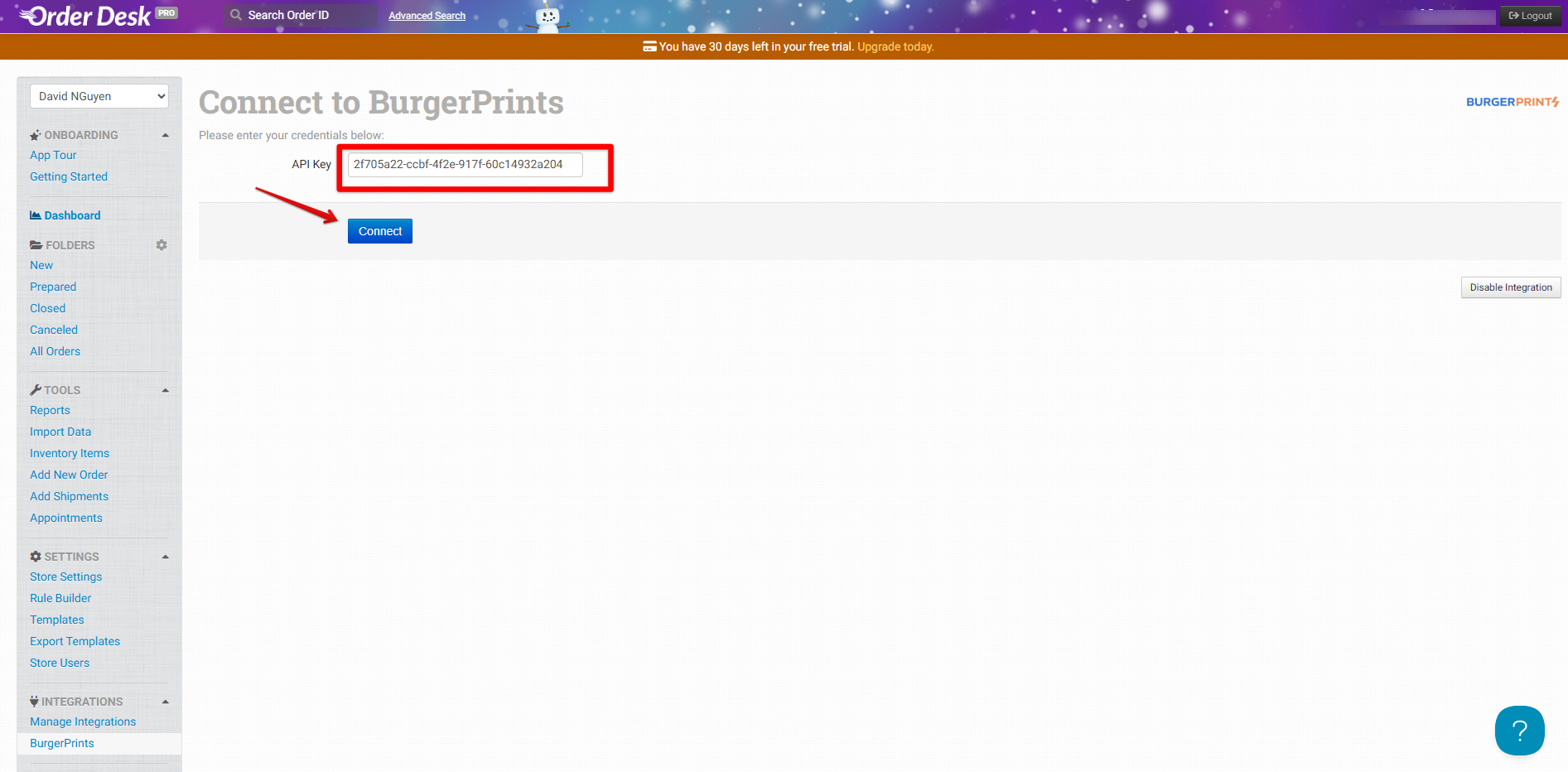
4. **Paste the API key into Order Desk and select Connect**
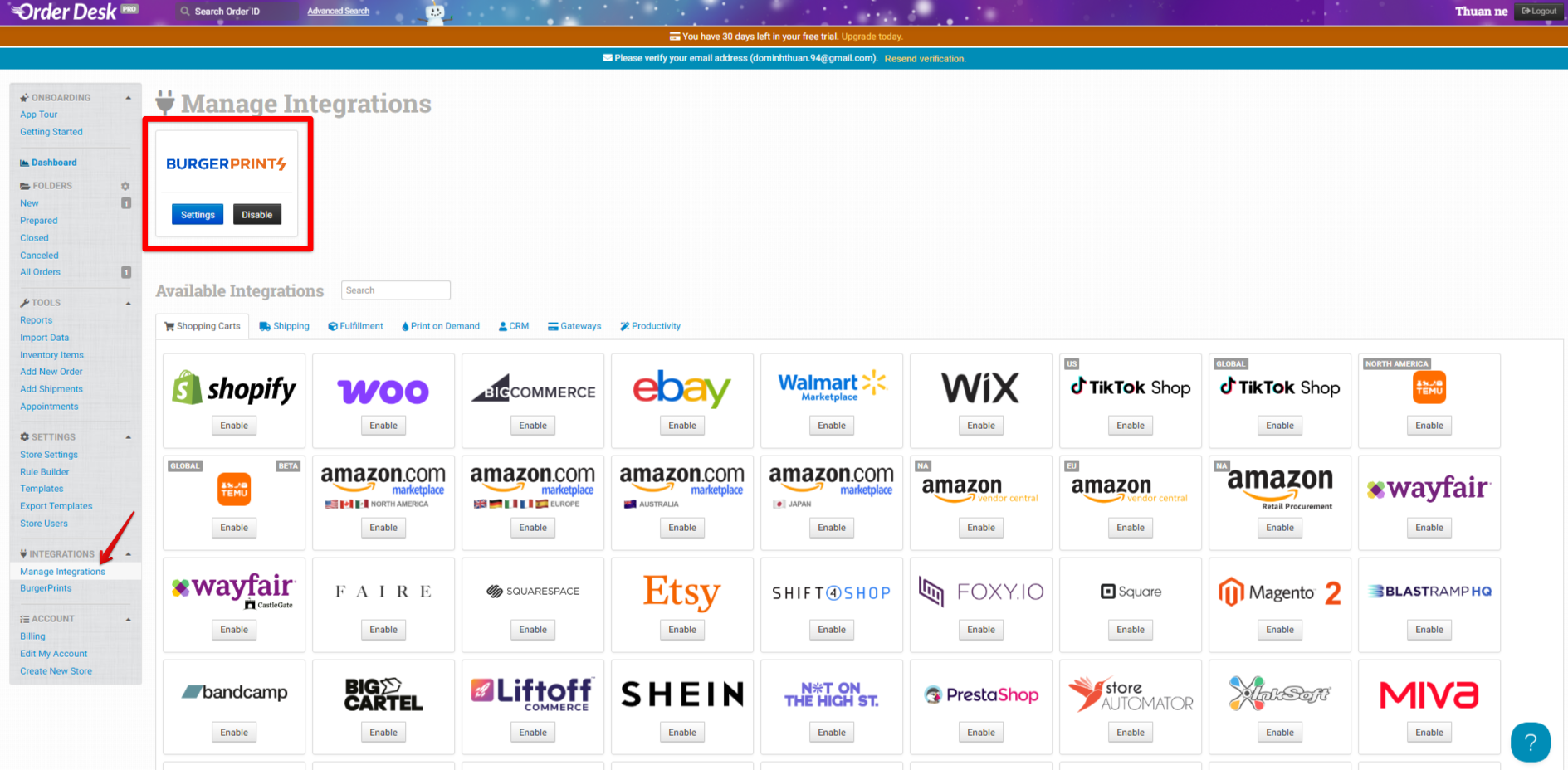
After completing the steps above, Order Desk will display a confirmation screen indicating that the BurgerPrints integration has been successfully connected.
### How to Configure BurgerPrints Order Sync Settings in Order Desk
The **BurgerPrints Settings** page in Order Desk allows you to control how orders are synced to BurgerPrints for fulfillment.
Configuration Options**Choose Environment**
* Production: Used for real, live orders.
* Sandbox: Used for testing only. Recommendation: Select Production for actual fulfillment.
**Choose Default Mail Class**
* Sets the default shipping method for synced orders.
* Can be overridden using Shipping Class Match rules.
**Choose Where Orders Are Moved After Import**
* Select the folder where orders will be placed after being imported.
**Choose Where Orders Are Moved After Shipment**
* Select the folder where orders will be moved once shipping is completed.
**Choose Address Check**
* Enabled: Validates shipping addresses before syncing.
* Disabled: Skips address validation. Recommendation*:* Keep this enabled to reduce delivery issues.
**Product Code Match**
* Product Code Match (Old Code = New Code): Map Order Desk product codes to BurgerPrints SKUs.
* Product Code Skip: Specify SKUs that should not be sent to BurgerPrints. Orders will only sync successfully if all products have valid BurgerPrints SKUs.
**Shipping Class Match**
* Map Order Desk shipping methods to BurgerPrints shipping classes:
* Select a BurgerPrints shipping class
* Enter the shopping cart name
* Click Add to save. Ensures orders use the correct shipping method.
**Save Changes**
* Click Save Changes to apply all settings.
* Once saved, eligible orders will sync automatically based on your configuration.
### How To Sync Orders From Your Order Desk To BurgerPrints
1. #### **Create an order on Order Desk**
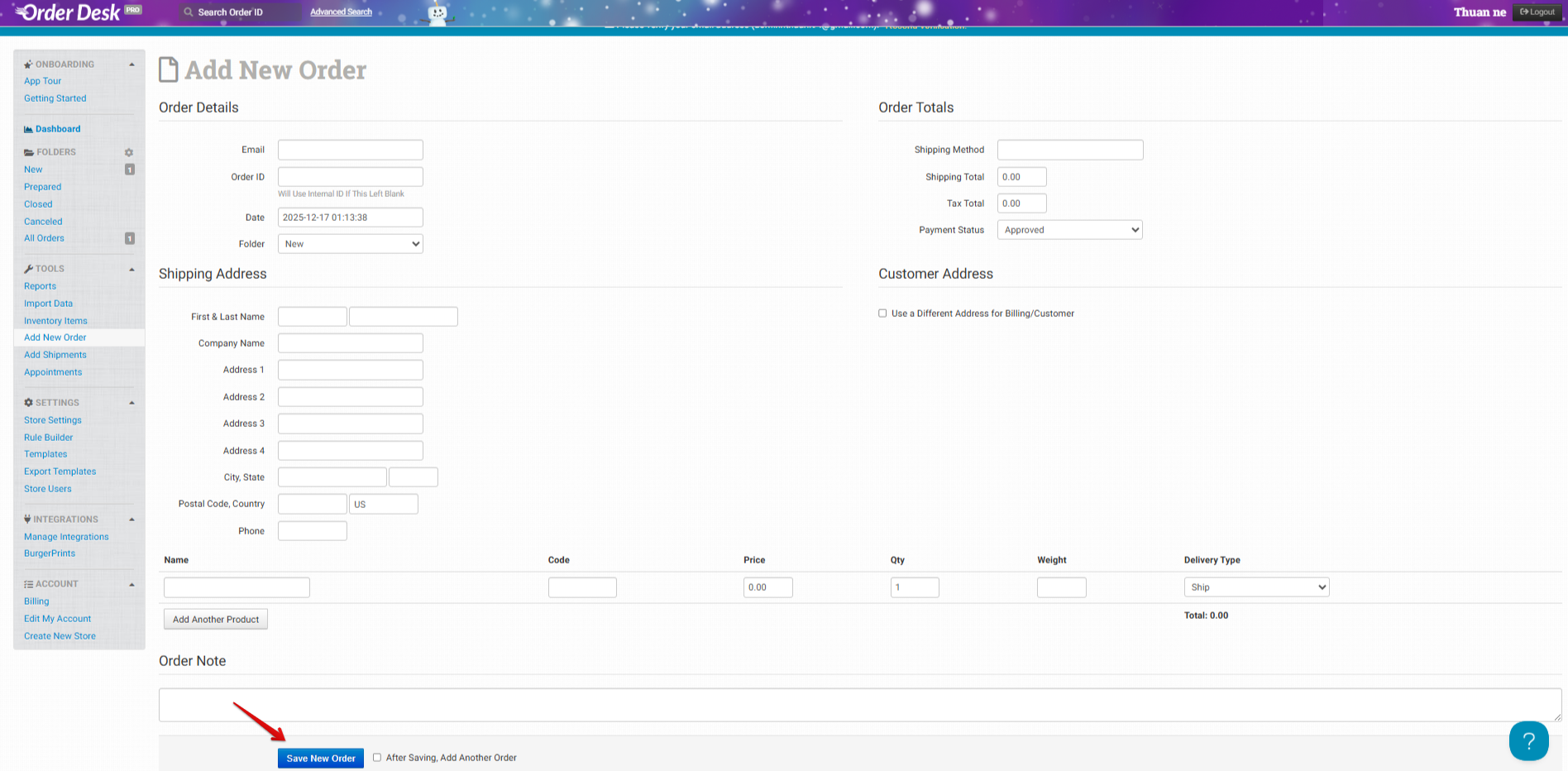
* Click **New**, then select **Create New Order**
* Enter the information in the Order Details, Shipping Address, Product, etc., then click **Save New Order** to save the order
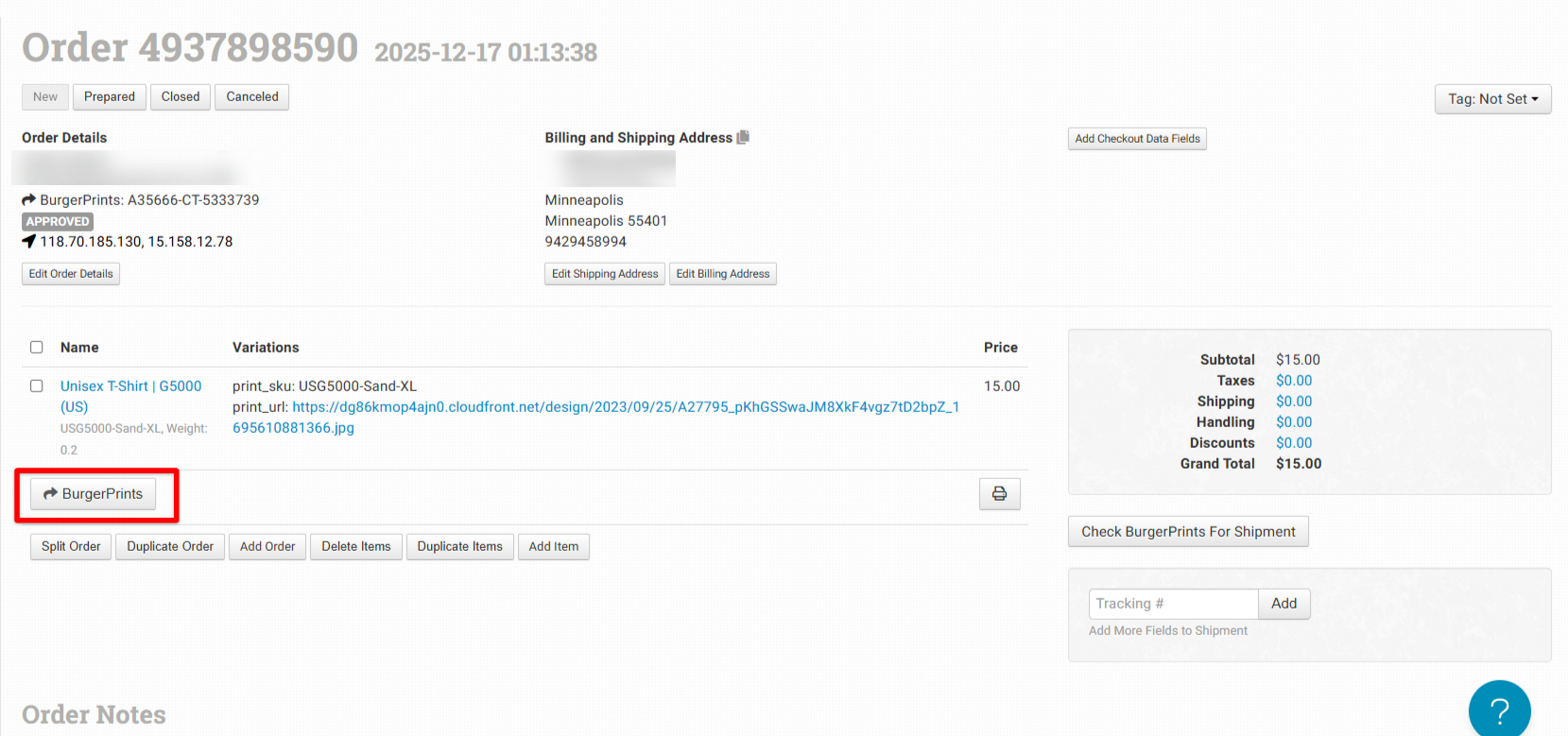
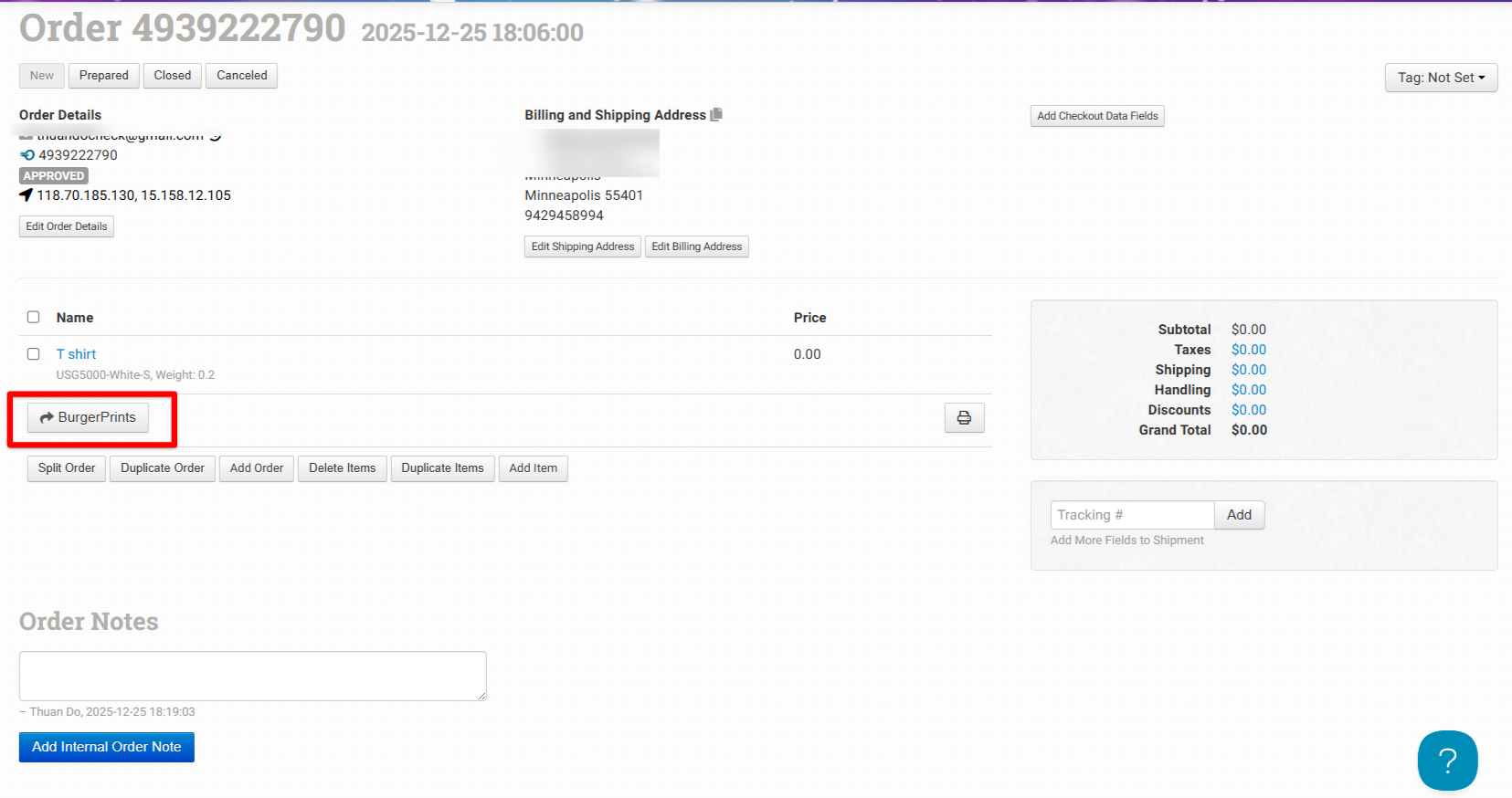
* Open the newly created order, remove the existing product, and click **Add Item** to re-enter product details.
* Fill in the corresponding information in the fields, then click **Add Item** to add the valid product to the order
* To successfully sync an order from Order Desk to BurgerPrints, all products in the order must have SKUs mapped to BurgerPrints and include all required information, such as the product design link...
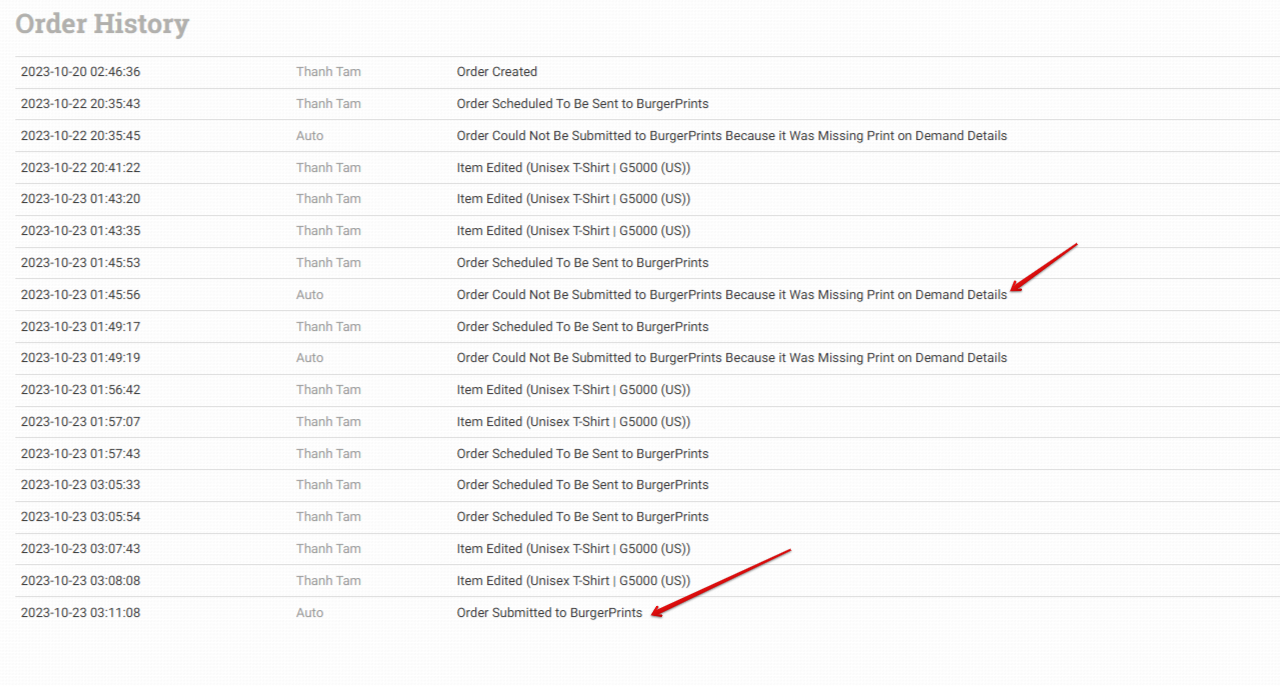
* Order sync status and progress are shown in the Order Desk timeline. When a sync fails, the timeline provides detailed reasons so you can fix the issue and resync the order by clicking the BurgerPrints button.
* Click **Add Internal Order Note** to save the order changes.
2. #### Sync orders from your Order Desk to BurgerPrints
To sync the order from Order Desk to BurgerPrints, you need to click the BurgerPrints button.
When the notification "**Order Scheduled To Be Sent to BurgerPrints**" appears, the order has been successfully scheduled for syncing.Once synced successfully, the Order Desk Order ID will be used as the reference order in BurgerPrints, making it easy to locate and match the order in both systems.
3. #### Pay order and Updating Tracking Information
**3.1 Order Synced Successfully**
When an order is created successfully in Order Desk with all required information, it will sync to BurgerPrints automatically with the status Unpaid. At this stage, the seller can proceed to pay for the order in BurgerPrints as usual, without needing to take any additional steps
**3.2 Order Requires Additional Information**
If an order has missing information, it will not sync successfully to BurgerPrints. The system will send a detailed email to the seller explaining why the order sync failed. In addition to email notifications, you can track the entire sync process and view error details in the order timeline in Order Desk.
At this point, you need to:
* Review the missing or incorrect information.
* Edit or add the required data (for example: product details,design links...).
* Select the *Send to BGP* button to sync the order again.
**3.3 Order Requires Information Correction**
If an order contains all required information but some details are incorrect, it will sync to BurgerPrints with the status **Incomplete**.
In this case, you need to update the incorrect information, so the order status changes to Unpaid
Once the status is Unpaid, you can complete payment and the order will proceed to fulfillment.
**3.4 Tracking Updates**
After the order is produced and shipped, BurgerPrints will automatically send the tracking number back to Order Desk.Order Desk will then update the order status, allowing your customers to track their shipment and follow the delivery progress.
### Tips and Best Practices
* Always ensure orders contain complete and accurate information (product SKU, shipping address, and shipping method) before syncing to BurgerPrints.
* Use valid and correctly mapped BurgerPrints SKUs to avoid sync failures.
* Keep Address Check enabled to reduce delivery errors and returned shipments.
* Review the order timeline in Order Desk to monitor sync status and identify issues early.
* For testing purposes, use the Sandbox environment before switching to Production.
### Frequently Asked Questions
1. **Do products need to be synced from BurgerPrints to Order Desk?**\
No. This integration supports syncing orders only. Products are managed directly in Order Desk.
2. **How long does it take for an order to sync to BurgerPrints?**\
Orders that meet all requirements are typically synced within a few minutes.
3. **What happens if an order fails to sync?**\
Check the order timeline in Order Desk for error messages, correct the issue (such as missing SKU or invalid address), and try syncing again.
4. **How can I identify a synced order in BurgerPrints?**\
Successfully synced orders use the Order Desk Order ID as the reference order in BurgerPrints.
5. **Will tracking information be sent back to Order Desk?**\
Yes. Once an order is shipped, BurgerPrints automatically sends the tracking number back to Order Desk.
### **Related Articles**
* [How to connect your Shopify store to BurgerPrints](/integrations-and-store-connections/store-connections/how-to-connect-your-shopify-store-to-burgerprints.md)
* [How to connect your TikTok Shop to BurgerPrints](/integrations-and-store-connections/store-connections/how-to-connect-your-tiktok-shop-us-to-burgerprints.md)
* [How to connect your WooCommerce store to BurgerPrints](/integrations-and-store-connections/store-connections/how-to-connect-your-woocommerce-store-to-burgerprints.md)
* [How to connect your Walmart store to BurgerPrints](/integrations-and-store-connections/store-connections/how-to-connect-your-walmart-store-to-burgerprints.md)
* [How to connect your Etsy store to BurgerPrints](/integrations-and-store-connections/store-connections/how-to-connect-your-etsy-store-to-burgerprints.md)
* [How to connect your BurgerShop store to BurgerPrints](/integrations-and-store-connections/store-connections/how-to-connect-your-burgershop-store-to-burgerprints.md)